Smart televisions have made internet-based entertainment much more convenient. With the right application, users can access different types of online video content directly from their television.
IPTV is one of the options available to Smart TV users. However, getting started can sometimes be confusing because different television brands use different operating systems.
A little preparation before installation can prevent many common problems.
Start With Your Television
The first thing to determine is the operating system of your Smart TV.
Samsung generally uses Tizen, LG uses webOS, while many Sony, TCL, and other televisions use Android TV or Google TV.
This matters because applications are designed for specific platforms.
Before searching for an IPTV player, open the settings menu and find your television’s model and operating system.
Check IPTV Compatibility
The next step is finding out which IPTV applications your television supports.
Some players accept M3U playlists, while others support Xtream Codes or additional login methods.
If you are considering Smart TV IPTV, checking compatibility before purchasing or activating a service is one of the most important steps.
A compatible application should also have a simple interface because television users generally want quick access to categories, channels, and program information.
What Makes a Good IPTV Player?
An IPTV player should do more than simply open a playlist.
Useful features can include:
- Simple navigation
- EPG support
- Multiple playlist options
- Search functionality
- Category organization
- Stable playback
- Regular application updates
Not every player offers the same features, so it is worth comparing several options.
Setting Up IPTV
Once you have a compatible player, the basic process normally follows a few steps.
1. Install the Application
Open your Smart TV’s official application store and search for a compatible IPTV player.
2. Open the Player
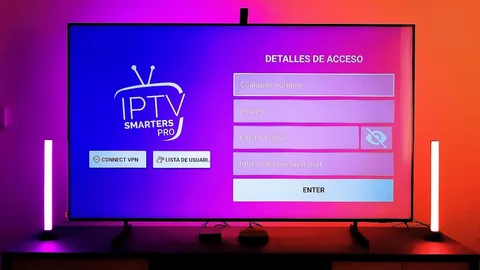
After installation, launch the application and look for the section where you can add your playlist or account.
3. Enter Your Details
Use the login information supplied by your authorized IPTV service.
4. Allow the Playlist to Load
Depending on the service and connection speed, the content may take a short time to appear.
5. Test Different Categories
Try several channels or content categories to make sure everything is working correctly.
Samsung and LG Users
Samsung and LG users should pay particular attention to application availability.
A player available on Android TV may not be available on Samsung Tizen or LG webOS.
This is why searching for an IPTV application by name alone is not enough. Always confirm that the application supports your specific platform.
Improve Your Streaming Quality
A good IPTV setup also depends on network performance.
If possible, connect your Smart TV directly to the router using Ethernet. If you prefer Wi-Fi, make sure the television receives a strong signal.
You should also avoid downloading large files or running bandwidth-heavy services on the same connection while watching high-resolution streams.
When IPTV Starts Buffering
Buffering does not always mean that the IPTV application is faulty.
Several factors can contribute to playback interruptions:
- Weak Wi-Fi
- Network congestion
- Router problems
- Outdated TV software
- Application issues
- Problems with the stream source
Start with the simplest checks. Restart the router, restart the application, and test another stream.
If other internet services are also slow, the problem may be related to your network rather than IPTV.
Choosing an IPTV Service
When comparing an IPTV Smart TV service, don’t focus only on the number of channels or advertised video quality.
Also look at compatibility, customer support, setup instructions, subscription terms, and the applications supported by the service.
A service that clearly explains its setup requirements is generally easier for users to work with.
Final Takeaway
Smart TV IPTV can be straightforward when the correct steps are followed.
Identify your television platform, choose a compatible player, use the correct account information, and make sure your internet connection is stable.
Taking these steps before installation can prevent many of the problems that new users commonly encounter.